Living in an assisted living community can make everyday technology more useful, not less. A phone, tablet, or simple voice-controlled device can help residents stay connected, manage appointments, enjoy entertainment, and feel more confident during changing routines.
The most helpful approach is to choose technology based on a person’s abilities, habits, and comfort level. Devices should reduce frustration rather than create another task to manage.
Which devices are easiest for assisted living residents?
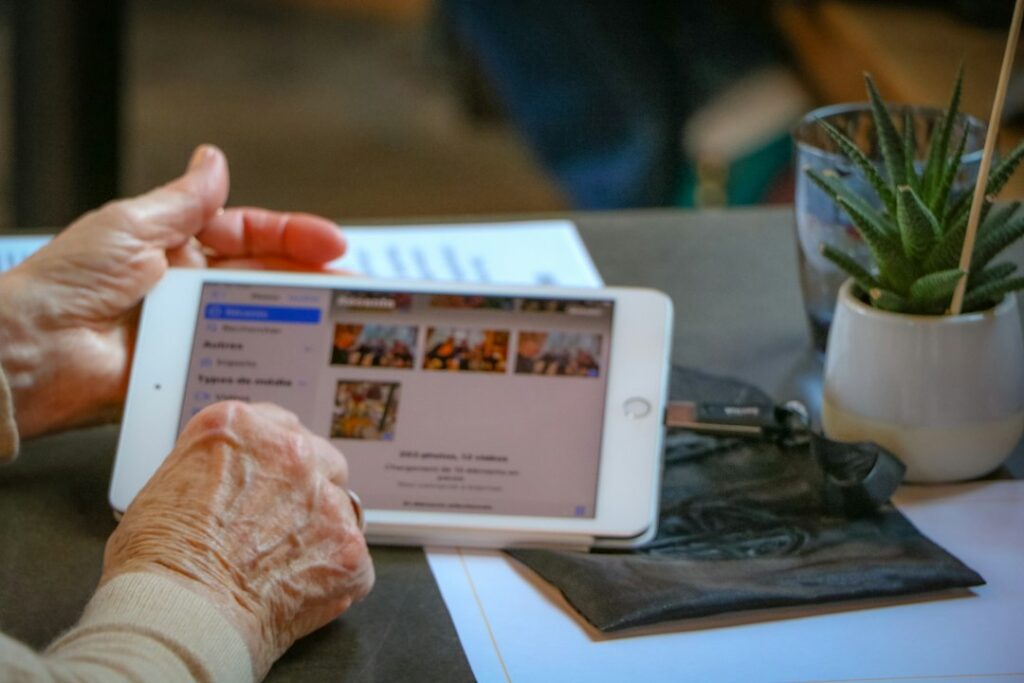
For many older adults, a tablet or smartphone with a larger screen is easier to use than a traditional computer. Tablets are especially useful because they have fewer controls, do not require a separate keyboard, and can be carried from a common area to a bedroom or activity room.
Useful features include:
- Large text and icons
- Strong screen brightness
- Simple touch controls
- Adjustable volume
- Voice-to-text messaging
- Video calling
- Emergency contact access
- Long battery life
A basic mobile phone may be the better choice for someone who mainly needs calls and occasional text messages. A tablet may work well for video calls, reading, games, photographs, and online activities. There is no requirement to use the most advanced device. Familiarity and reliability matter more than the number of features.
How can seniors make a phone or tablet easier to see?
Most devices include accessibility settings that can improve visibility without changing the device itself. Increasing text size, enlarging icons, and raising screen contrast can make menus easier to understand.
Helpful adjustments may include:
- Larger font and display size
- Bold or high-contrast text
- Reduced screen glare
- A brighter display
- Fewer apps on the home screen
- A plain background behind icons
- Larger touch targets
- A screen reader for people with significant vision loss
A protective case with a textured edge can make a device easier to hold. A stand may also help residents who have difficulty gripping a phone for long periods. Keeping the screen clean and using good lighting can improve visibility more than many people expect.
Residents should avoid making too many changes at once. Adjust one setting, test it, and keep the change only if it helps.
What technology helps residents stay connected with family?
Video calling can help residents participate in family conversations, see grandchildren, attend celebrations, or remain involved in household decisions. It can be especially valuable when travel is difficult or weather affects visits.
For easier calls, family members can:
- Save frequent contacts with photographs
- Place the video-call app on the main screen
- Write simple instructions in large print
- Test the camera and microphone before a planned call
- Use headphones if background noise is distracting
- Schedule calls at times when the resident is rested
A missed call does not necessarily mean something is wrong. The device may be muted, disconnected from Wi-Fi, out of battery, or placed in another room. A short troubleshooting checklist can prevent unnecessary worry.
The checklist might say: check the volume, check the battery, confirm the internet connection, and restart the device if needed.
How can technology help with medications and appointments?
Digital calendars, reminders, and alarms can help residents remember appointments, activities, hydration, or other daily routines. However, electronic reminders should support an established care plan rather than replace instructions from caregivers or medical providers.
A reminder can be labeled with plain language, such as “morning medicine” or “leave for appointment,” instead of a complicated abbreviation. Large visual clocks and calendar displays may be helpful for residents who do not regularly use phones.
Medication decisions should never be based only on a phone alert. Residents should follow the medication system provided by their care team and ask for assistance if a reminder conflicts with written instructions.
Are voice assistants useful for older adults?
Voice commands can be helpful for residents who have difficulty typing or navigating small menus. A person may be able to ask for the time, set a reminder, call a family member, or play music without touching the screen.
Voice technology works best when:
- The device is placed where the resident can speak clearly
- The microphone is not blocked
- The resident knows a few specific commands
- The device is connected to power
- Privacy settings are reviewed
- Family members understand that voice recognition is not perfect
Background noise, hearing loss, speech changes, and different accents can affect accuracy. Voice assistants should not be treated as emergency-response systems unless the device and service are specifically designed and tested for that purpose.
How can residents avoid online scams?
Older adults are frequent targets for fraudulent calls, misleading messages, fake account warnings, and impersonation attempts. A trustworthy message should not pressure someone to act immediately, share a password, buy gift cards, transfer money, or provide a security code.

Common warning signs include:
- A message demanding urgent payment
- A caller claiming to be a relative in trouble
- A pop-up saying the device is infected
- A request for a password or verification code
- An offer that seems unusually generous
- A message asking the recipient to keep the situation secret
Residents should pause before responding and discuss suspicious messages with a trusted family member or appropriate staff member. It is safer to open an official app directly than to click a link in an unexpected message.
Passwords should be unique when possible. A password manager, written password record stored securely, or assistance from a trusted person may help someone avoid reusing the same password everywhere.
What privacy settings deserve attention?
Technology can be convenient while still requiring careful privacy choices. Residents should review who can see their location, photographs, contact list, health information, and online activity.
Useful privacy habits include:
- Locking the device with a passcode
- Using automatic screen locking
- Avoiding sensitive conversations in public areas
- Reviewing app permissions
- Turning off location sharing when it is not needed
- Installing updates from the device’s normal settings menu
- Removing accounts from devices that are no longer used
A family member helping with technology should explain what access is being requested and why. Support should preserve the resident’s independence and dignity rather than quietly taking control of every account.
How should technology be handled during Pennsylvania winters?
Seasonal weather in Pen Argyl can affect travel, power, and communication routines. Residents may want to keep devices charged before a forecasted storm and store charging cables where they are easy to find.
A simple preparedness routine can include:
- Keeping a phone charged
- Knowing how to make an emergency call
- Saving important contacts
- Keeping a backup charging method if appropriate
- Avoiding extreme cold or heat
- Checking that hearing devices and phones are charged before leaving a room
Technology cannot replace a community’s emergency procedures. Residents should know how staff communicate during weather-related changes and where to find posted updates.
What is the best way to learn a new device?
Short, repeated practice is usually more effective than a long explanation. Begin with two or three tasks the resident actually wants to perform, such as answering a call, viewing photographs, or checking the day’s schedule.
Written instructions should use large print, one action per line, and familiar wording. Demonstrating the task several times can build confidence. It also helps to leave room for mistakes. Forgetting a step is normal, especially when a device changes after an update.
Technology should remain a tool for comfort, connection, and independence. The right setup is not necessarily the newest one; it is the one a resident can use safely and with reasonable confidence.